Showing posts with label kawaii-a-bunga. Show all posts

Tuesday, April 1, 2014

2 days left to get 80% savings on new product!


kawaii a bunga
We have only two days left to purchase the nearly 1900 new images! We've put them into the giant Kawaii-a-bunga Bundles, and marked them down to unbelievably low pricing for ONLY 2 MORE DAYS! Purchase these products at an incredible 80% savings now!!
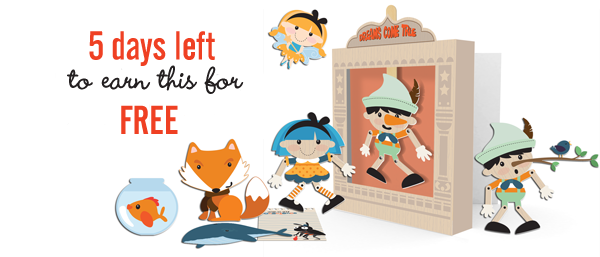
This month, earn the Hi-Dee-Ho Collection! Simply purchase $10 in product between April1-30th and it will be added to your library FREE! See the Hi-Dee-Ho Collection here.

Thursday, March 27, 2014

New kawaii-a-bunga bundles! Biggest discounts on new product ever!


 Nearly 1900 new images have landed on LD! We've put in into the giant Kawaii-a-bunga Bundles, and marked them down to unbelievably low pricing for ONE WEEK ONLY! Purchase these products at an incredible 80% savings now!!  All of our graphics include face and faceless versions. Want to cut your Cut It version without a face? See today's tip to learn how!

Only 5 days left! Have you earned your Conscientiously Collection? This enormous collection, valued at $27 can be yours when you spend only $12 (accumulative!) from March 1- 31. See the Conscientiously Collection here.

How to cut items in the Kawaii-A-Bunga Bundle without the face

If you love the Kawaii-A-Bunga Cut It Bundle, but don't want to be limited by having the face, it's super easy to eliminate it in just a few simple steps!

1. First, open up your image in Make-the-Cuts. You can either import the image separately, or use the handy Lettering Delights Image Gallery located directly to the left, by just double clicking on the image. I am using the hammer from In the Garage.

2. Go to the lower right-hand corner of Make-the-Cuts and expand the layers menu.
3. Now, some items may be able to just be deleted by x-ing out that particular layer. I x'd out the cheeks and highlight. (Just click the x next to that particular layer).
4. Last if the face is integrated into a particular layer, just click on that layer. Then right-click. Click on Shape Magic in the pop-up menu. And then select "Blackout." Bye-bye face!